Triggering and Scheduling Workflows
In Infoveave, triggers and scheduling are mechanisms that define how and when workflows are executed. They ensure that workflows run automatically in response to specific events or at predefined intervals. For effective ETL (Extract, Transform, Load) processes, understanding these mechanisms is crucial to automating tasks such as integrating data from multiple sources, applying transformations, and loading it into structured tables. For the demonstrated ETL workflow in Infoveave, triggers and scheduling are integrated to ensure smooth and automated execution.
A trigger is an event or action that initiates the execution of a workflow. In Infoveave, triggers allow workflows to start automatically without requiring manual intervention. Depending on the nature of the event or process, Infoveave supports several types of triggers.
Manual Trigger
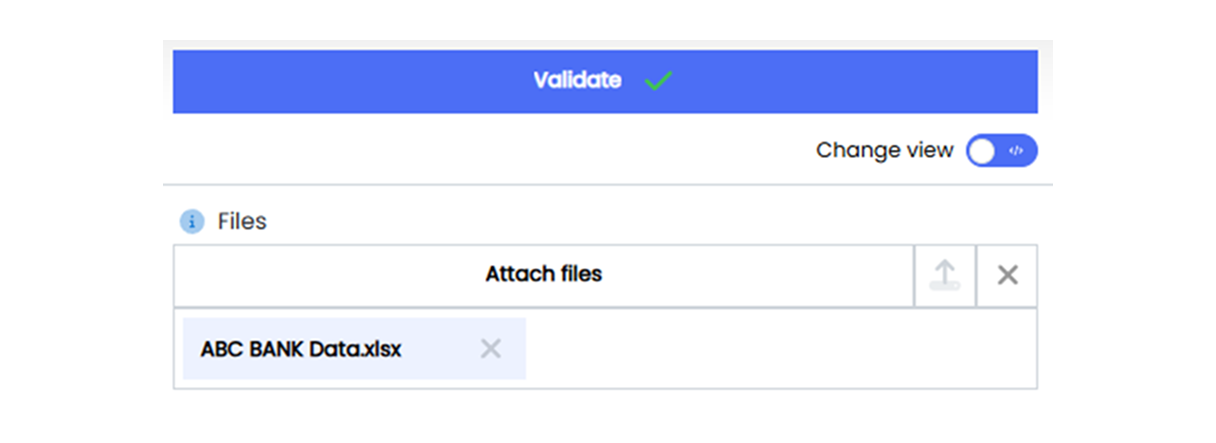
A manual trigger offers a flexible way to execute workflows on-demand. This allows to start a workflow manually through the Infoveave interface by uploading data or files containing the necessary information to initiate the process. Unlike automated triggers or scheduled workflows, manual triggers provide complete control over when and how a workflow is executed. Manual triggers are particularly valuable during the development and testing phases of an ETL process.
Webhook Trigger
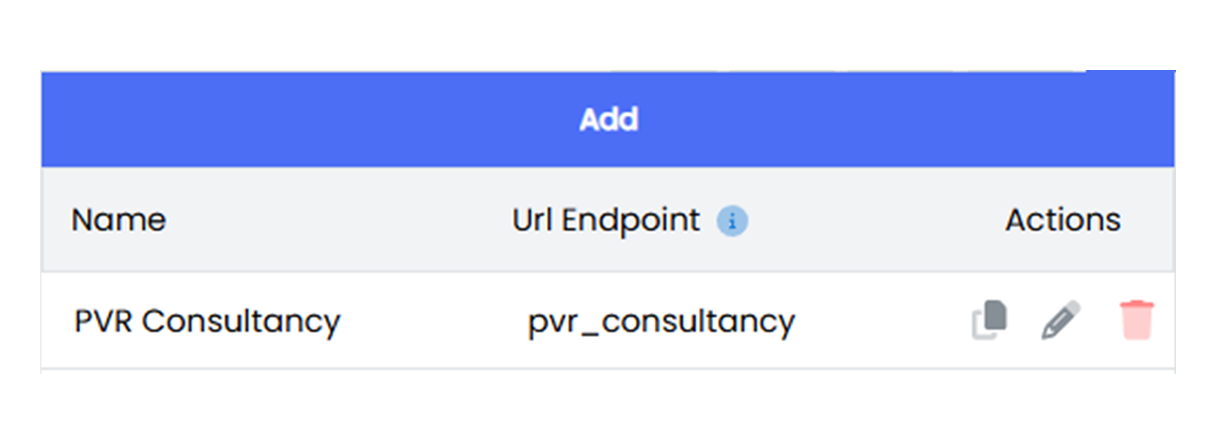
A webhook trigger in Infoveave allows workflows to start automatically in response to events generated by external systems. When an external system sends an HTTP POST request to a predefined URL endpoint associated with the workflow, the webhook trigger initiates the workflow. These requests typically include the required data in JSON format, which is processed directly by the workflow. This eliminates the need for manual intervention or scheduled runs, making it ideal for real-time, event-driven automation. Unlike manual triggers or email triggers, webhook triggers are purely event driven. The trigger mechanism focuses solely on initiating the workflow based on the external notification.
Email Trigger
An email trigger in Infoveave starts a workflow when an email is received at a designated email address configured for the workflow. This functionality is designed for workflows that need to execute automatically in response to incoming emails. Unlike webhook triggers, which rely on structured JSON data, email triggers are designed to handle workflows that process the attachments of the email.
Email triggers focus on the action of receiving the email itself, making them ideal for workflows that need to act upon notifications or system-generated emails. This approach simplifies automation by relying on email communications as the trigger mechanism while leaving data handling and processing to other parts of the workflow.
Cron Triggers (Scheduling)
Scheduling workflows is the process of automating the execution of workflows at predefined intervals or based on custom patterns. This ensures consistency in data processing and eliminates the need for manual intervention.
Infoveave provides two key options for scheduling workflows: Time-based Scheduling and Custom Scheduling using Cron Syntax.
Time-based Scheduling
Time based scheduling in Infoveave allows workflows to be executed at specific times based on simple configuration options. This type of scheduling is used when the workflow needs to run at a consistent time every day, week or month on specific intervals.
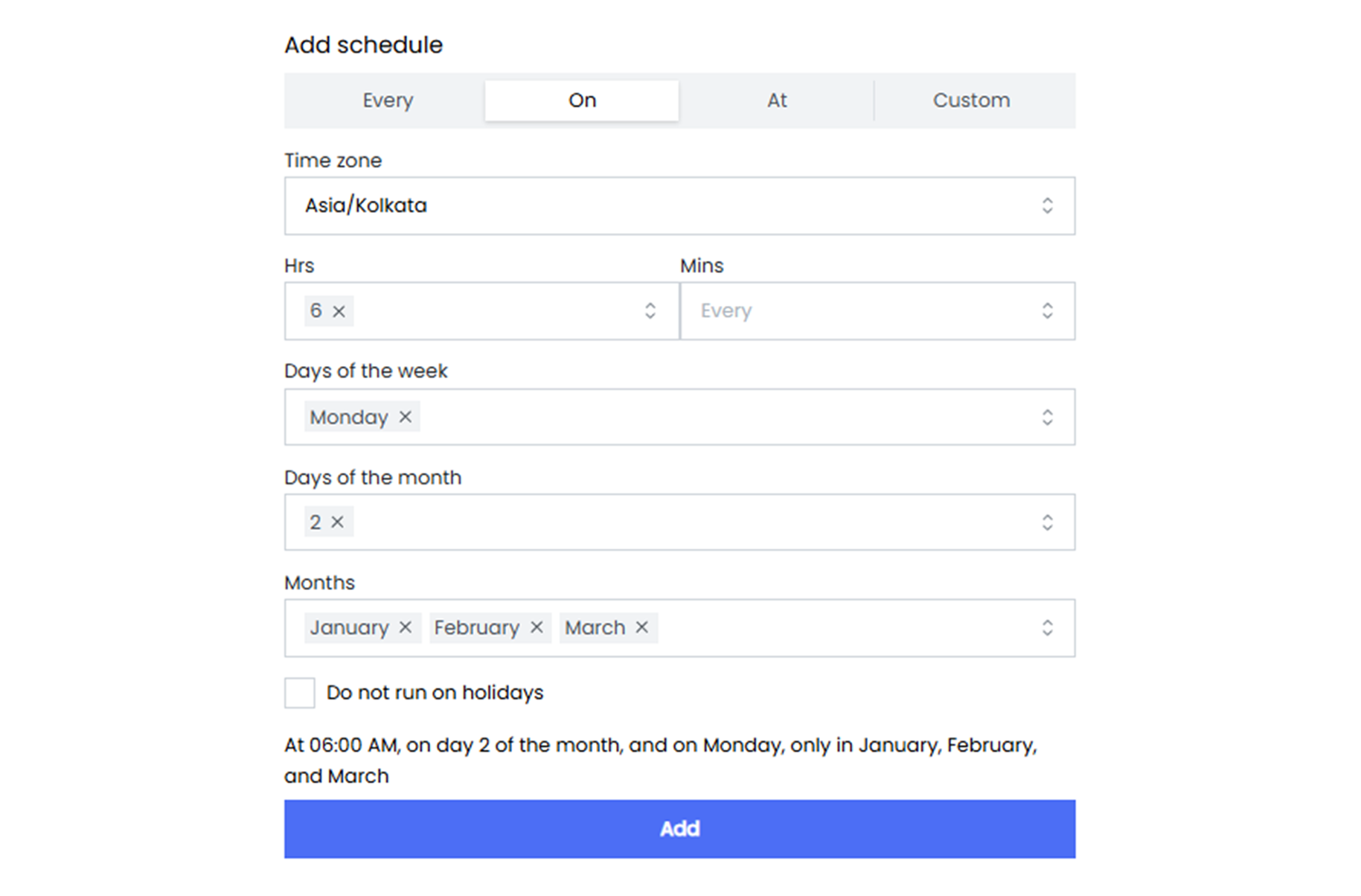
Custom Scheduling Using Cron Syntax
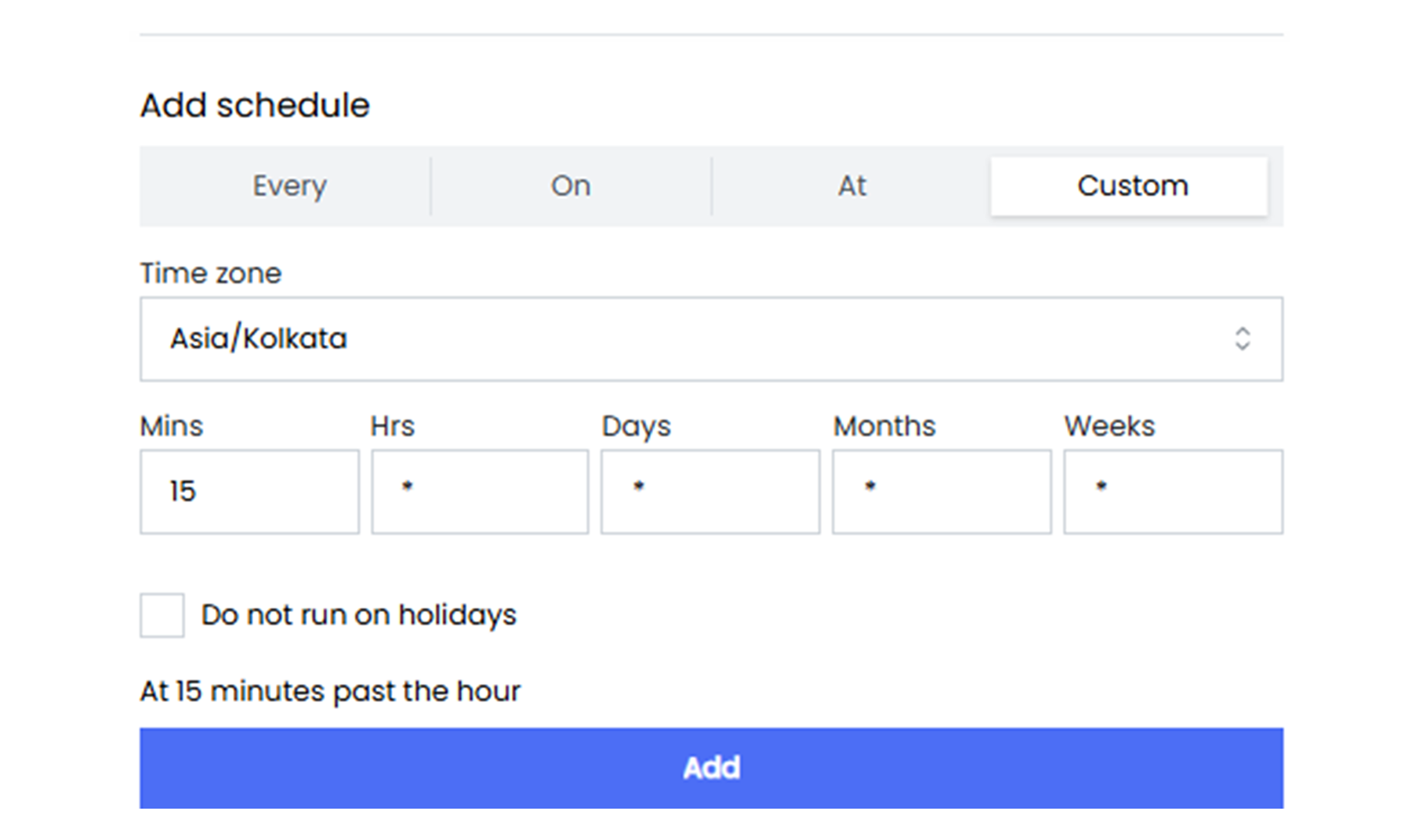
Custom scheduling with cron syntax allows for more complex and precise scheduling requirements. Cron expressions provide granular control over the timing and frequency of workflow execution. Let us understand about Cron expression in brief, a cron expression consists of five fields:
- Minute (0–59): Specifies the minute(s) when the workflow will execute.
- Hour (0–23): Specifies the hour(s) when the workflow will execute.
- Day of Month (1–31): Specifies the day(s) of the month.
- Month (1–12): Specifies the month(s).
- Day of Week (0–6): Specifies the day(s) of the week (0 = Sunday).