Actions
Actions are predefined functionalities assigned to widgets that allow users to interact with the dashboard in various ways. For example:
-
Refreshing the dashboard in real-time.
-
Navigating to other dashboards or download reports.
-
Triggering workflows or opening linked external resources.
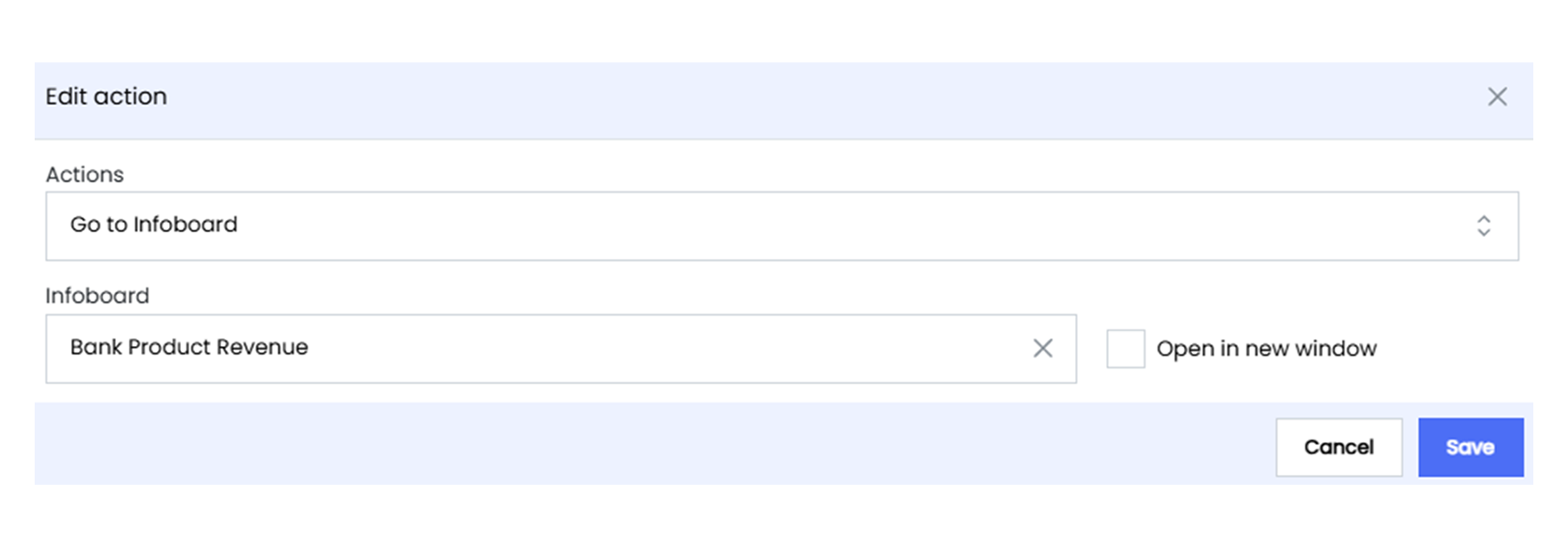
Actions add interactivity and functionality to dashboards, allowing to perform specific tasks or navigate seamlessly within and beyond the dashboard. By configuring actions, widgets can trigger dynamic responses, enhance user engagement, and streamline workflows.
Key Types of Actions
Actions in Infoboard Designer serve different purposes, depending on the needs of the dashboard. They enhance functionality, streamline workflows, and improve user experience. Below are scenarios where each action type can be effectively used:
-
Navigate to a Dashboard: Widgets can be configured to link to another dashboard. For example, clicking on a Button widget can navigate to a detailed Branch performance dashboard.
-
Download Report: Widgets like images and icons can be configured to download linked reports for more in-depth analysis.
-
Refresh Infoboard / Clear filters: This action updates the widget with the latest data, ensuring the visualization reflects real-time changes. For example, clicking a refresh button updates sales or loan figures without reloading the entire dashboard.
-
Trigger a Workflow: Widgets can initiate specific workflows, such as extracting data from source, transforming them and then loading onto a DWH.
-
Navigate to External Links: Widgets can redirect users to external websites, resources, or applications. For example, clicking on a Customer Feedback text widget could open an external survey tool.